
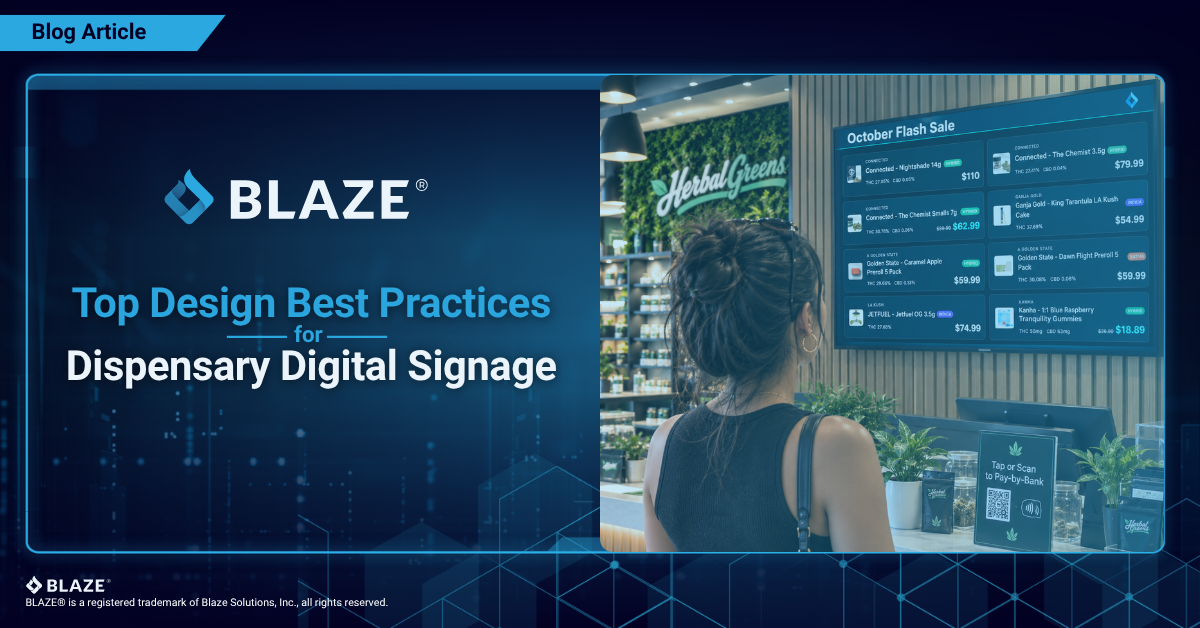
Eight ways to make your in-store screens readable, accurate and built to sell, from layout and contrast to curated selections and hardware.
What Is Dispensary Digital Signage?
Dispensary digital signage is the set of in-store screens that show your menu, promotions, check-in queue and visual content. It replaces printed menus and static TV slides. The best systems, like BLAZE TV, pull product, price and inventory data directly from your POS, so what's on screen always matches your shelves.
Dispensaries use signage throughout the store, from the entrance and waiting area to product education and compliance notices. For a broader look at those use cases, see this overview of digital signage for dispensaries.
Good design is what turns those screens from wall decoration into a sales tool. These practices help your signage look sharp, stay readable and move product.
1Design for Readability First
Shoppers read your menu standing in line, often from 10 to 20 feet away. If they have to squint, they'll stop reading.
- Go big on type. A common signage rule of thumb is about 1 inch of letter height for every 10 feet of viewing distance.
- Limit the font styles. Use one typeface for headers and one for body text.
- Prioritize contrast. Light text on a dark background, or the reverse, reads best. Avoid busy background images behind product names.
- Plan for glare. Screens near windows or under bright lights wash out quickly. High-contrast color themes keep text legible.
Choose from 17 pre-built color themes, including high-contrast options built for high-glare spaces.
2Choose the Right Orientation and Layout
The shape of your wall should decide the shape of your menu.
- Portrait works well for narrow walls, pillars and entryways, and for long lists within one category.
- Landscape suits wide walls behind the counter and showing several categories side by side.
- Keep columns to a minimum. Two to four columns per screen is the sweet spot. Beyond that, text shrinks and shoppers lose their place.
- Give each screen one job. Dedicate screens by category (flower, vapes, edibles) instead of squeezing everything onto one.
Set any screen to landscape or portrait mode with 2 to 4 layout columns.
3Keep Menus Accurate in Real Time
The most important design element is accuracy. A shopper who picks a product off the board, only to hear it's sold out, remembers the disappointment, not your color scheme.
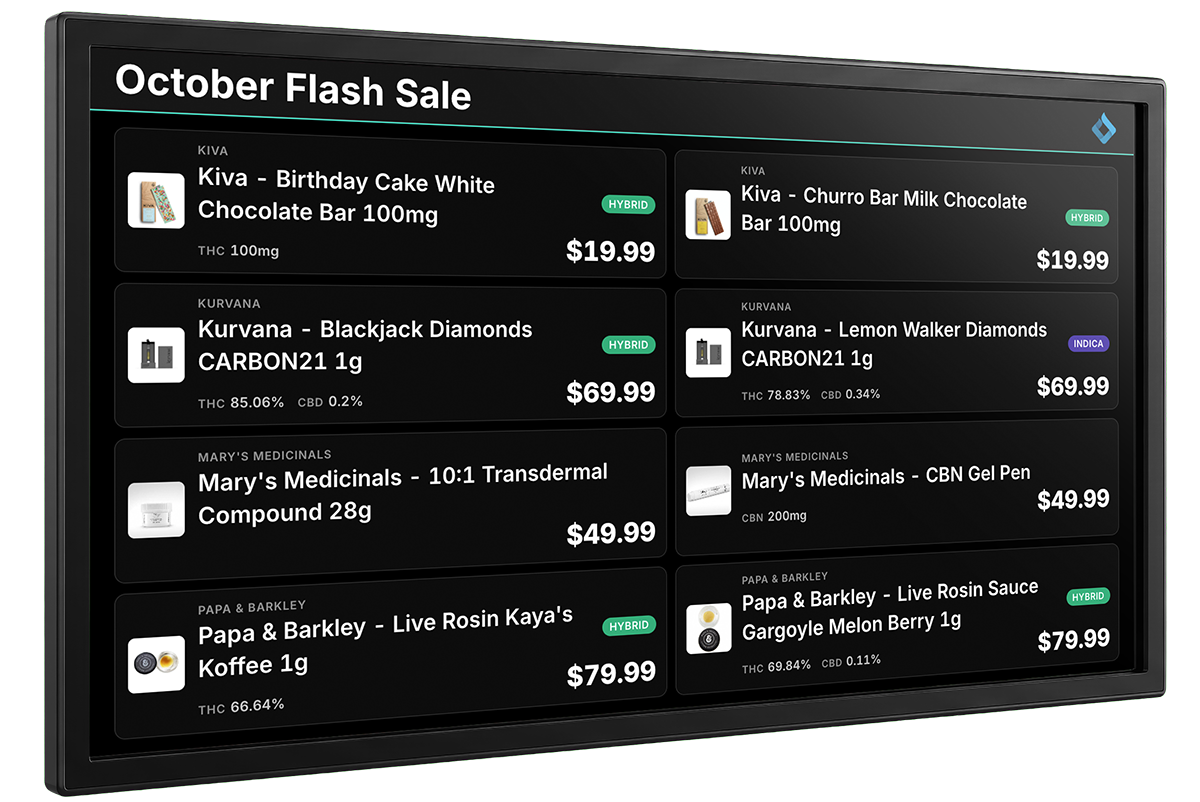
Accuracy starts with where your menu data comes from:
- Sync with your POS so prices and availability update automatically.
- Hide low-stock items before they run out, so you never advertise your last unit.
- Retire USB sticks and manual exports. Any menu that needs a person to update it will fall out of date.
Menus in BLAZE TV sync live with BLAZE POS inventory. Products drop off automatically when they sell out or fall below your custom low-stock threshold. Because BLAZE TV is built into BLAZE, there's no third-party integration to set up and no sync delay.
4Curate Product Selections Instead of Listing Everything
Showing your entire catalog on one screen overwhelms shoppers. Curated selections guide them toward a decision.
- Group with intent. Build selections like a brand spotlight, a category feature or vendor days.
- Schedule by moment. Feature value products during happy hour and premium picks on weekends.
- Refresh regularly. Rotating featured selections keeps regular customers looking.
Build curated product selections with Smart Collections by brand, category or vendor. Schedule them by date range, day of the week or time window.
5Use Visuals and Video With Purpose
Motion catches the eye, but too much of it becomes noise.
- Keep videos short. Clips of 30 seconds or less hold attention without stalling the rotation.
- Use one message per banner. One image, one headline, one idea.
- Time your rotations. Menu slides need longer than promo images. Give shoppers enough time to read before the slide changes.
- Stay on brand. Use consistent colors, logos and photo styles across every screen.
Combine menus, banner images and 30-second MP4 videos in rotating slideshows with adjustable slide timing.
6Design the Queue Screen for Clarity and Privacy
A live queue display makes the wait feel shorter and keeps check-ins organized. Its design should balance transparency with discretion.
- Show only what's needed: a name and an order status.
- Protect customer privacy by displaying only a first name and last initial.
- Add loyalty recognition. Tier badges reward your best customers and get non-members asking how to join.
- Place it where the wait happens: near check-in or the waiting area.
Display real-time waitlists with customer names, order status and loyalty tier badges.
7Don't Forget Back-of-House Screens
Signage isn't just for shoppers. Screens in staff areas follow different design rules.
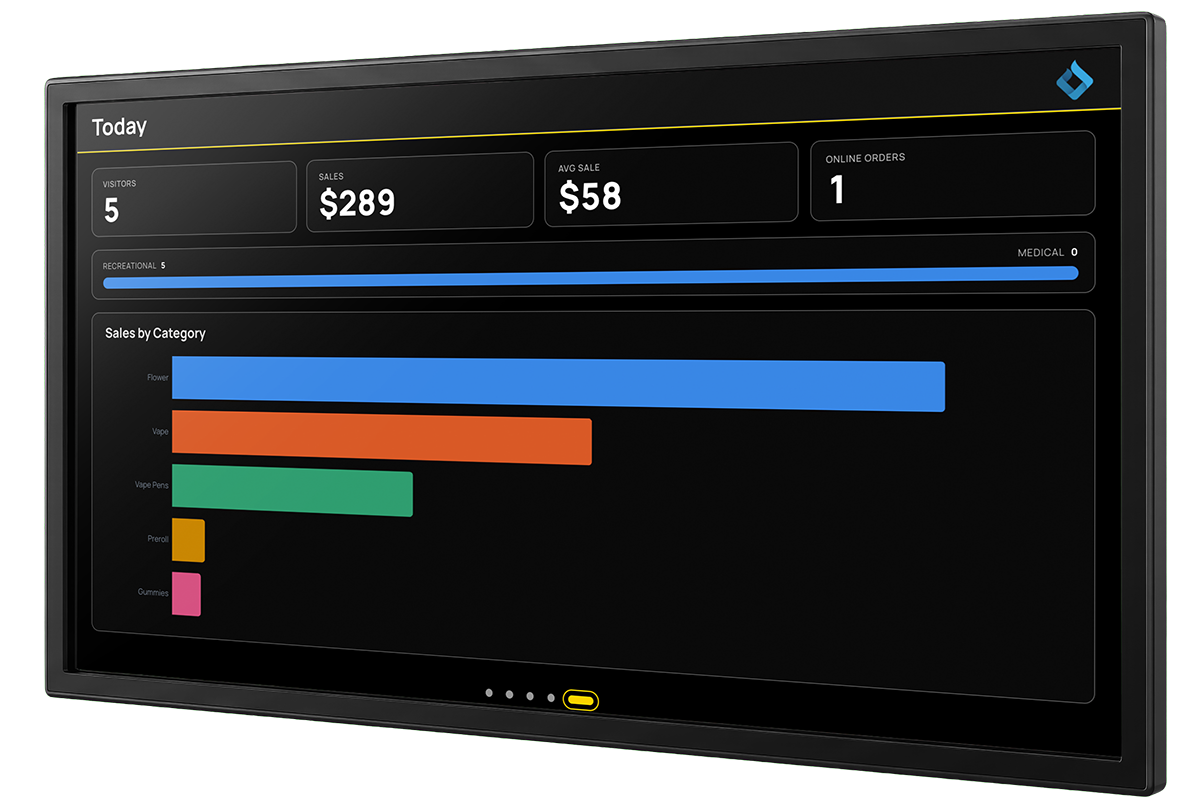
Keep staff screens simple and focused:
- Show only actionable numbers: daily sales, top categories, top brands and pending orders.
- Use leaderboards to add friendly competition among budtenders.
- Make it glanceable. Staff should understand the screen in under five seconds.
Back-of-house dashboards show daily store overviews, category sales, top-selling brands and a top 5 budtender leaderboard.
8Pick Hardware That Stays On
A great design does nothing on a dark screen. Choose devices built to keep your dispensary digital signage running all day.
Recommended
- Fire TV Stick 4K Max (2nd generation)
- Fire TV Stick 4K Plus
- Fire TV Cube
- Fire TV Omni televisions
Avoid
- Fire TV Stick 4K Select
- Fire TV Stick HD
These turn off after five minutes of inactivity, and third-party apps can't override it.
Run your screens in any modern web browser or on a recommended Fire TV device, using the screens you already have. For step-by-step setup, see the BLAZE TV setup guide.
Bring It All Together With BLAZE TV
The best dispensary signage is readable, accurate, curated and easy to manage. BLAZE TV brings every practice above into one system built directly into BLAZE POS:
- Live menus that drop sold-out and low-stock items
- Landscape and portrait layouts with 17 color themes
- Curated product selections with Smart Collections
- Banners, images and video in rotating slideshows
- Check-in queue with loyalty tier badges
- Back-of-house dashboards and budtender leaderboards
Turn Every Screen into a Sales Tool
Modernize your front and back of house with no extra vendor and no integration required.
Request a BLAZE TV DemoFrequently Asked Questions
What is the best layout for a dispensary digital menu?
Use two to four columns per screen, with one product category per screen where possible. Portrait works for narrow walls and long lists. Landscape works for wide walls behind the counter.
How big should text be on a dispensary menu screen?
A common signage rule of thumb is about 1 inch of letter height for every 10 feet of viewing distance. Pair large type with high-contrast colors for the best readability.
How long should each slide display on dispensary signage?
Menu slides need more time than promotional images, because shoppers have to scan product names and prices. Adjust timing by slide type rather than using one setting for everything.
How do I keep my dispensary digital menu up to date?
Use signage that syncs directly with your POS. With BLAZE TV, menus update automatically when products sell out or prices change, and low-stock items can be hidden before they run out.
Can digital signage show a dispensary's customer queue?
Yes. BLAZE TV displays checked-in customers, order status and loyalty tier badges live on screen.
What hardware do I need for dispensary digital signage?
Any modern web browser, or a recommended Amazon Fire TV device: the Fire TV Stick 4K Max (2nd generation), Fire TV Stick 4K Plus, Fire TV Cube or Fire TV Omni televisions.